
Fixing WiFi on Mac Mini Late 2014 (7,1) – Debian 13 Trixie
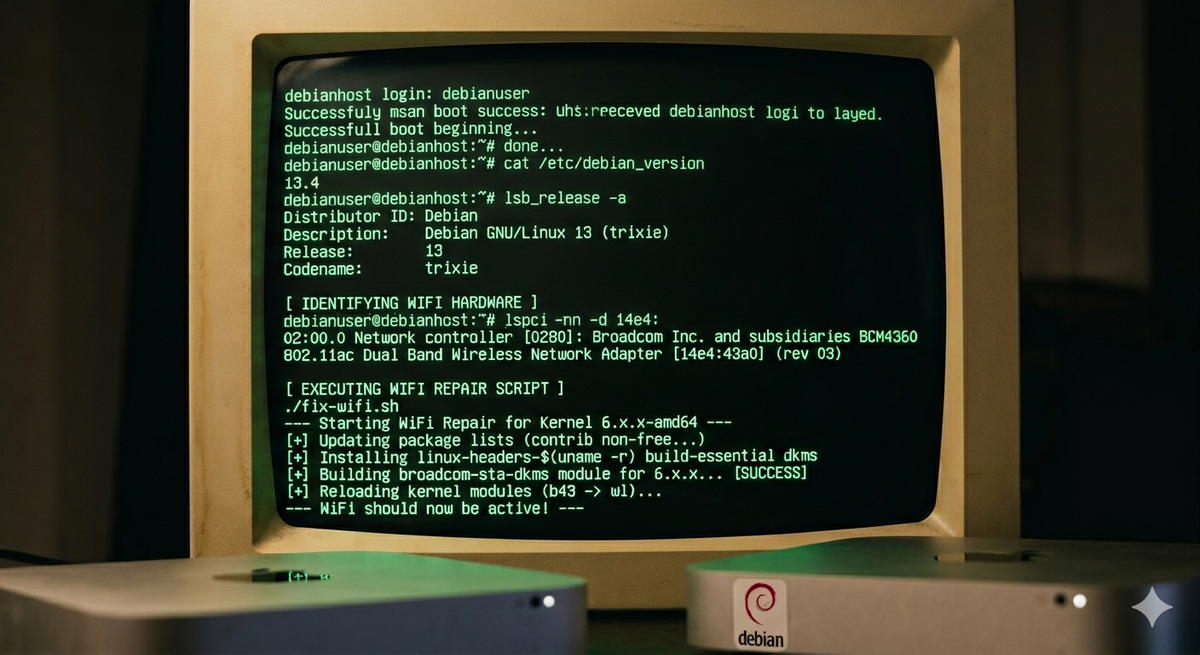
If you have installed Debian 13 (Trixie) on a 2014 Mac Mini (Macmini7,1), you will face a major hurdle: the WiFi does not work out of the box. This model uses the Broadcom BCM4360 chipset. Because the driver is proprietary, Debian cannot include it in the installation media. Furthermore, because this driver must be compiled specifically for your kernel, it will break every time the kernel is updated (such as the 13.4 update in March 2026).
1. The Installation "Lifeline"
Since WiFi is dead on arrival, you must use a wired Ethernet connection for the initial setup. The Mac Mini's Ethernet port works natively in Debian 13 and will provide the internet access needed to download the WiFi drivers.
2. Identify Your Hardware
To confirm your Mac Mini uses the affected Broadcom chip, run:
lspci -nn -d 14e4:
If the output contains [14e4:43a0], this guide is for you.
3. Enable "Non-Free" Software
By default, Debian only looks for open-source software. You must tell it to look for the proprietary Broadcom driver. Open your sources file:
sudo nano /etc/apt/sources.list
Ensure your lines include contrib, non-free, and non-free-firmware. It should look like this:
deb http://deb.debian.org/debian/ trixie main contrib non-free non-free-firmware4. The "First Install & Update" Repair Script
Because the driver is not available in the default repository and breaks during kernel updates, I use this script to fix the WiFi.
Run this script:
- Immediately after your first Debian installation (after editing
sources.list). - Every time a
sudo apt upgradeinstalls a new kernel version.
How to set it up:
- Create the file:
nano fix-wifi.sh - Paste the code below and save (
Ctrl+O,Enter,Ctrl+X). - Make it executable:
chmod +x fix-wifi.sh - Run it:
./fix-wifi.sh
#!/bin/bash
# WiFi Repair Script for Debian 13 Trixie (Mac Mini 2014)
# Run this for first-time setup and after every Kernel update.

echo "--- Starting WiFi Repair for Kernel $(uname -r) ---"

# 1. Update package lists
# Essential on first install so APT can see the 'non-free' driver.
sudo apt update

# 2. Install headers and build tools
# DKMS needs these to compile the driver for your specific kernel version.
sudo apt install linux-headers-$(uname -r) build-essential dkms

# 3. Install/Reinstall the Broadcom STA driver
# On first install, this downloads the driver. On updates, it forces a rebuild.
sudo apt install --reinstall broadcom-sta-dkms

# 4. Clean up conflicting modules and load the 'wl' driver
sudo modprobe -r b43 b43legacy bcm43xx bcma brcm80211 brcmfmac brcmsmac ssb
sudo modprobe wl

echo "--- WiFi should now be active! ---"
Why this is necessary
- First Install: The
wldriver isn't on your system yet. This script downloads it and compiles it for the first time. - Kernel Updates: Debian 13 is the Stable release. When it receives security patches for the kernel, the Broadcom driver (which is "out-of-tree") becomes mismatched. This script ensures your
linux-headersare updated so DKMS can successfully re-compile the driver for the new kernel.
Final Verification
Once the script finishes, check if the module is loaded:
lsmod | grep wl
If wl is listed, you can finally unplug the Ethernet cable!